Getting started
EmbroideryCraft turns shapes and lettering into machine embroidery. You draw objects, choose how each one is stitched, and export a Tajima DST file for your machine.
Haven't installed it yet? See the download page. On a Mac, every Ctrl shortcut in this manual is ⌘.
The window
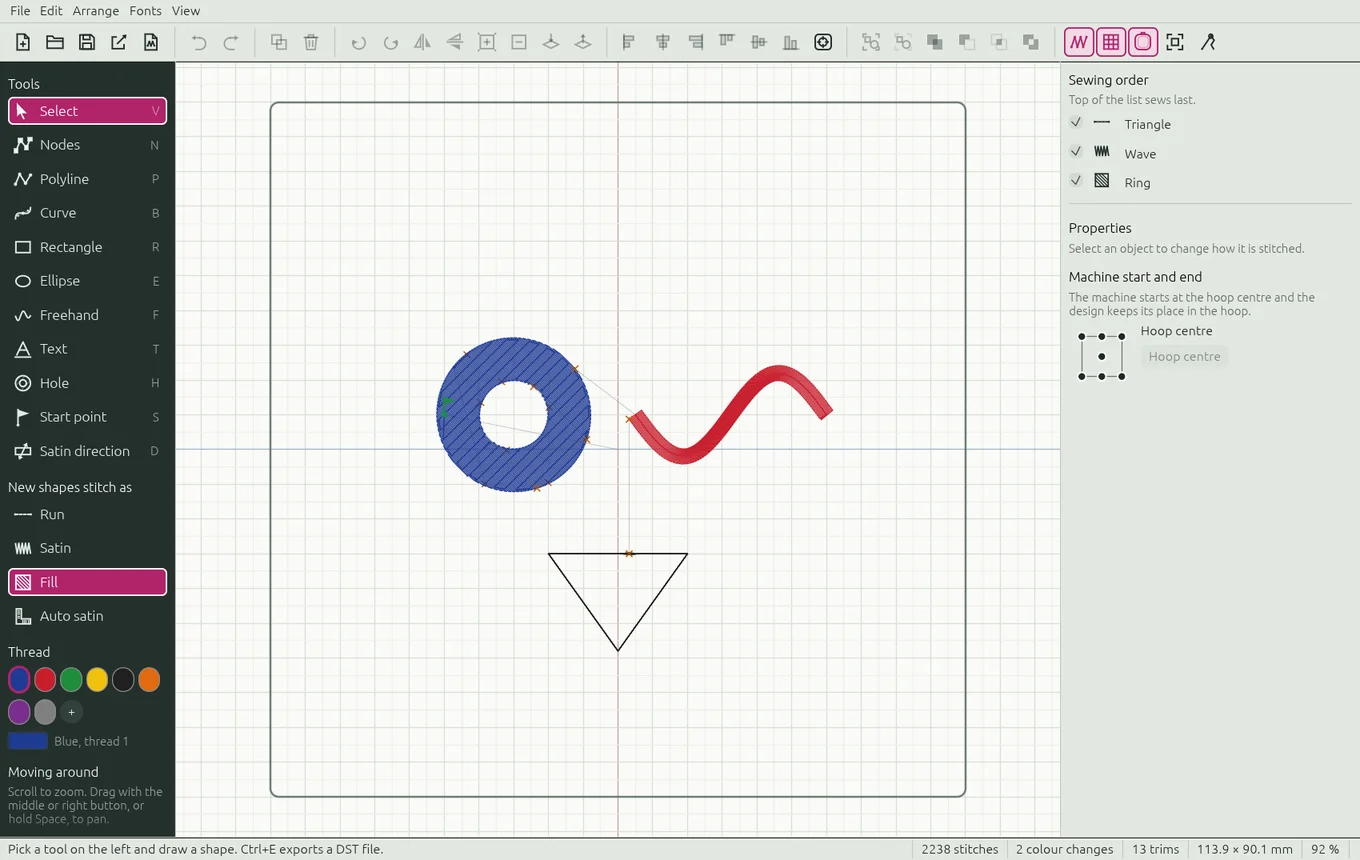
--demo to get it).| Area | What it's for |
|---|---|
| Menu bar | File, Edit, Arrange, Fonts and View. |
| Toolbar | Icons for files, undo, rotate, flip, resize, sewing order, align, group, shape combining and view switches. Rest the pointer on any icon to see what it does. |
| Left rail | Tools (each with its key), New shapes stitch as (the stitch type for the next shapes you draw), Thread colours and a reminder of how to move around. |
| Canvas | Your design inside the hoop, on a millimetre grid. Orange crosses mark trims, thin grey lines are jumps, a green flag marks a start point. |
| Right panel | Sewing order (the object at the top of the list sews last) and Properties of what is selected. |
| Status bar | Messages on the left. On the right: stitch count, colour changes, trims, design size, warnings such as Outside the hoop or A stitch is longer than 12.1 mm, and the zoom. |

Moving around
- Zoom: mouse wheel (it zooms around the pointer). On a Mac trackpad, pinch, or ⌘ + scroll.
- Pan: drag with the middle or right mouse button, or hold Space and drag. On a Mac trackpad, move with two fingers.
- Zoom to fit: press 0 to see the whole hoop and design.
Your first design in six steps
- Under New shapes stitch as, pick Fill.
- Press E (Ellipse) and drag on the canvas. Hold Shift for a circle. The stitches appear at once.
- Pick Satin, press B (Curve) and click, or click and drag, to draw a wavy line. Press Enter to finish it.
- Press V (Select), click a shape and change its settings in Properties, or click a colour under Thread.
- Press Ctrl+P to watch it sew in the stitch player.
- Press Ctrl+S to save the project, then Ctrl+E to export the DST file for your machine.
Projects and files
| File | What it is |
|---|---|
.embcraft | Your project: shapes, stitch settings, threads, lettering (still retypeable), the background picture link, the product and the machine start. Keep this to change the design later. |
.dst | The Tajima machine file, made with File › Export DST machine file… (Ctrl+E). It only holds stitches: you can't edit it as shapes. |
.svg / .png | Pictures: Export SVG preview… of the stitches, and Save mockup picture… for customers. |
.ecfont | An EmbroideryCraft font. |
* after the file name in the window title means there are unsaved changes.The hoop size and the Trims in DST files setting are not saved in the project: they go back to 200 × 200 mm and 3 when the app restarts.
Undo
Ctrl+Z undoes and Ctrl+Shift+Z (or Ctrl+Y) redoes, up to 200 steps. Dragging a slider or moving a shape counts as one step.
Premiers pas
EmbroideryCraft transforme des formes et du lettrage en broderie machine. Vous dessinez des objets, choisissez comment chacun est brodé, puis exportez un fichier Tajima DST pour votre machine.
Pas encore installé? Voir la page de téléchargement. Sur Mac, chaque raccourci Ctrl de ce manuel se fait avec ⌘. L'application elle-même est en anglais : les noms de menus et de boutons sont donnés en anglais, avec leur sens en français.
La fenêtre
--demo pour l'obtenir).| Zone | À quoi elle sert |
|---|---|
| Barre de menus | File (fichier), Edit (édition), Arrange (disposition), Fonts (polices) et View (affichage). |
| Barre d'outils | Icônes pour les fichiers, annuler, pivoter, miroir, taille, ordre de broderie, aligner, grouper, combiner des formes et l'affichage. Laissez le pointeur sur une icône pour voir ce qu'elle fait. |
| Colonne de gauche | Tools (outils, chacun avec sa touche), New shapes stitch as (type de point des prochaines formes dessinées), couleurs de fil (Thread) et un rappel pour se déplacer. |
| Canevas | Votre motif dans le cadre, sur une grille en millimètres. Les croix orange marquent les coupes, les fines lignes grises sont les sauts, un drapeau vert marque un point de départ. |
| Panneau de droite | Sewing order (ordre de broderie : l'objet en haut de la liste est brodé en dernier) et Properties (propriétés) de la sélection. |
| Barre d'état | Messages à gauche. À droite : nombre de points, changements de couleur, coupes, taille du motif, avertissements comme Outside the hoop (hors du cadre) ou A stitch is longer than 12.1 mm (point de plus de 12,1 mm), et le zoom. |
Se déplacer
- Zoom : molette de la souris (autour du pointeur). Sur un trackpad de Mac, pincez, ou ⌘ + défilement.
- Déplacer la vue : glissez avec le bouton du milieu ou le bouton droit, ou maintenez Espace et glissez. Sur un trackpad de Mac, deux doigts.
- Tout voir : touche 0 pour voir le cadre et tout le motif.
Votre premier motif en six étapes
- Sous New shapes stitch as, choisissez Fill (remplissage).
- Touche E (ellipse), puis glissez sur le canevas. Maj pour un cercle. Les points apparaissent aussitôt.
- Choisissez Satin, touche B (courbe), et cliquez, ou cliquez-glissez, pour tracer une ligne ondulée. Entrée pour terminer.
- Touche V (sélection), cliquez une forme et changez ses réglages dans Properties, ou cliquez une couleur sous Thread.
- Ctrl+P pour la regarder se broder dans le lecteur de points.
- Ctrl+S pour enregistrer le projet, puis Ctrl+E pour exporter le fichier DST de votre machine.
Projets et fichiers
| Fichier | Ce que c'est |
|---|---|
.embcraft | Votre projet : formes, réglages des points, fils, lettrage (toujours modifiable), lien vers l'image de fond, le produit et le départ machine. Gardez-le pour modifier le motif plus tard. |
.dst | Le fichier machine Tajima, créé avec File › Export DST machine file… (Ctrl+E). Il ne contient que des points : on ne peut pas le modifier comme des formes. |
.svg / .png | Des images : Export SVG preview… des points, et Save mockup picture… (maquette) pour les clients. |
.ecfont | Une police EmbroideryCraft. |
* après le nom du fichier dans le titre de la fenêtre signale des changements non enregistrés.La taille du cadre et le réglage Trims in DST files ne sont pas enregistrés dans le projet : ils reviennent à 200 × 200 mm et à 3 au redémarrage.
Annuler
Ctrl+Z annule et Ctrl+Maj+Z (ou Ctrl+Y) rétablit, jusqu'à 200 étapes. Glisser un curseur ou déplacer une forme compte pour une étape.